All your work context, inside Slack
Bring all your work context into Slack. Ask Sage anything, draft replies, and stay caught up, with context from your calendar, email, meetings, and documents.
Add to Slack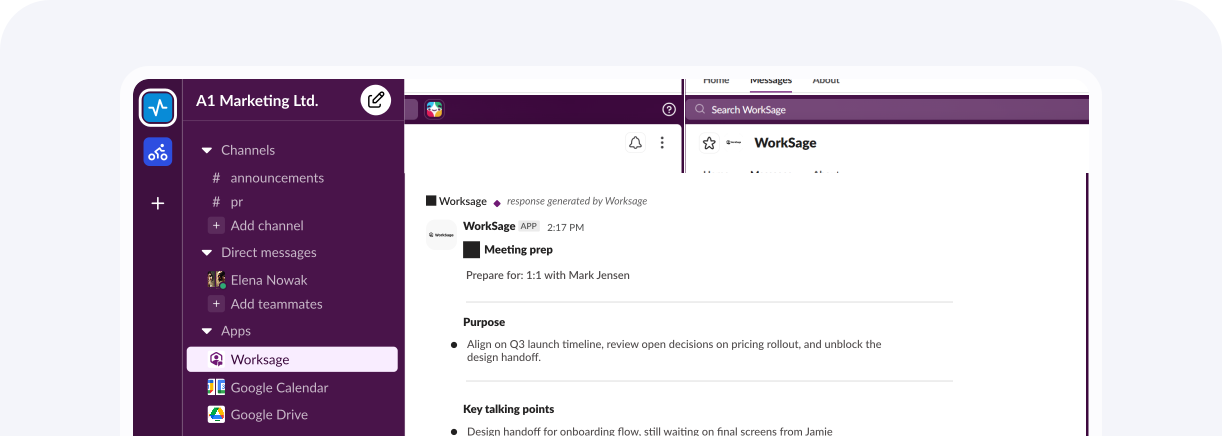
WorkSage connects your calendar, email, tasks, documents, and meetings into a single persistent memory, and gives you an AI assistant, Sage, that reasons across all of it.
Add to SlackHere's what you can do with Sage on Slack
Get caught up
Ask Sage what happened while you were away. Sage pulls from your meetings, emails, calendar and other connected tools, not just Slack.
Draft messages with context.
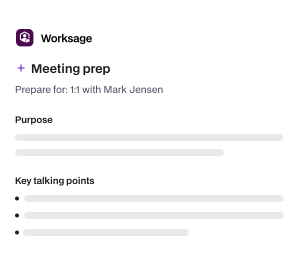
Ask Sage to draft a reply, a follow-up, or a status update. Sage uses your past conversations, documents and calendar to write in your voice with the right facts.
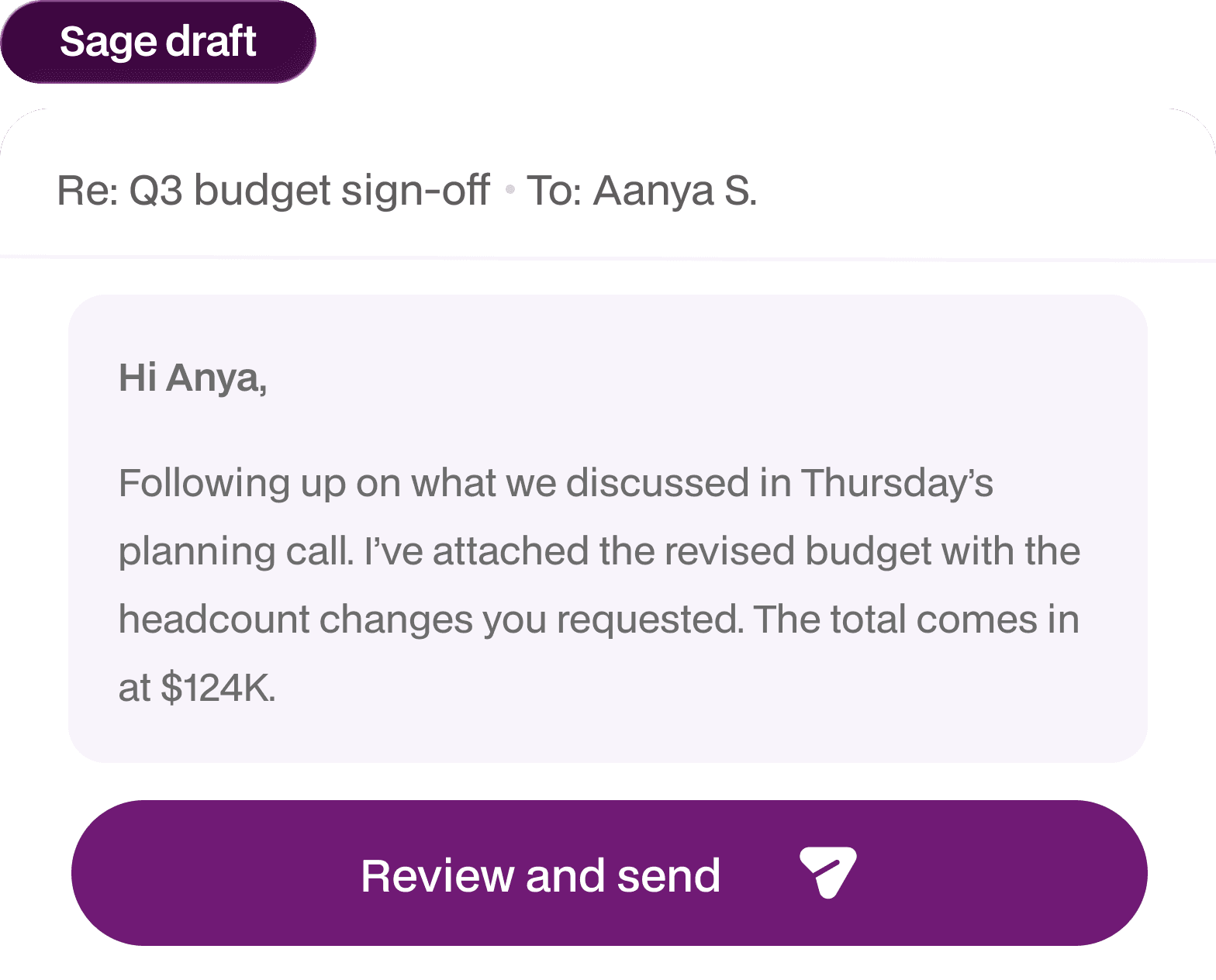
Pull from your wider work life.
"What time is my call with Jordan tomorrow?" "What did we agree on the pricing change?" Sage answers with context about your entire work life.

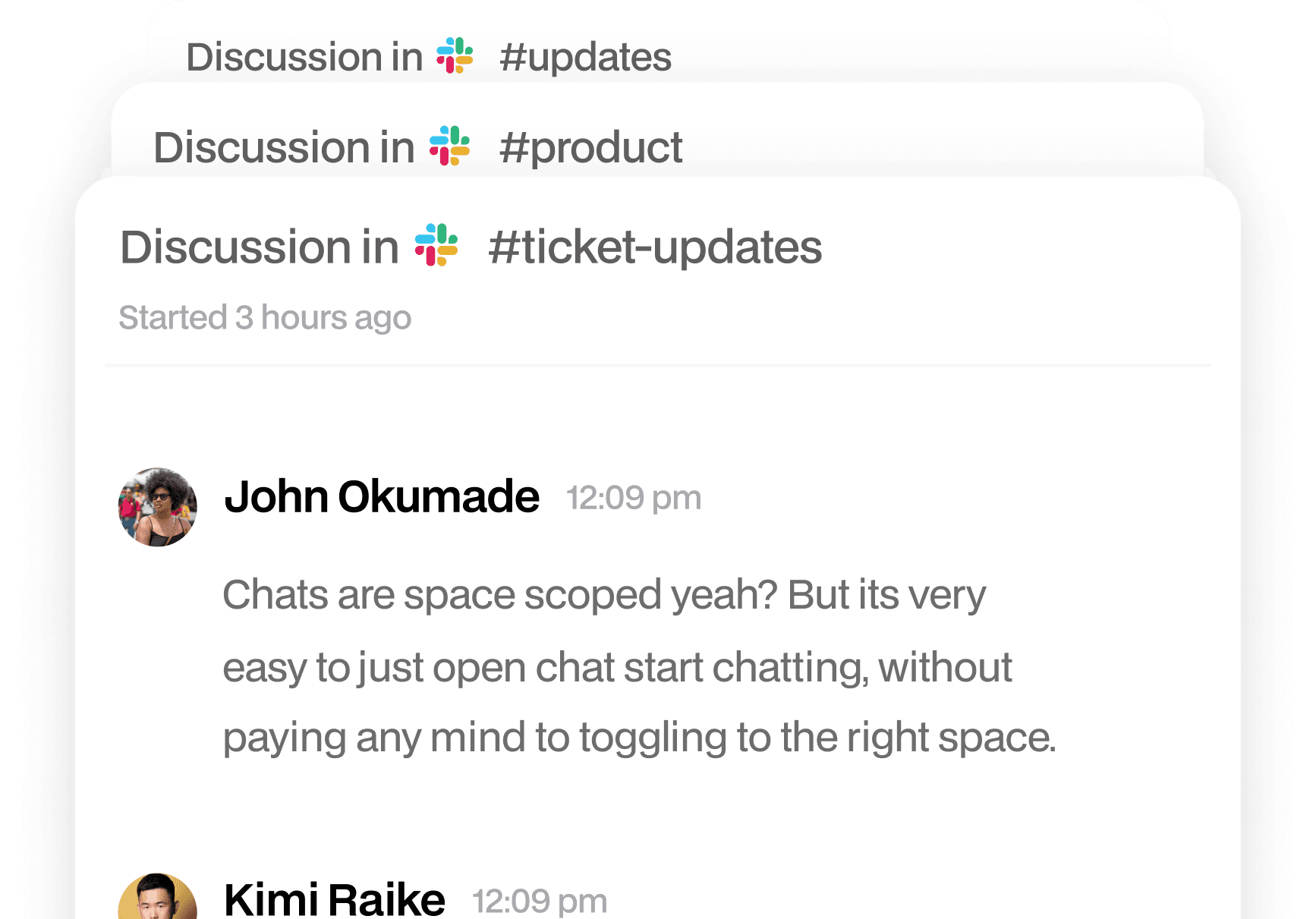
Capture commitments from channels.
Add Sage to any channel and it will track decisions and commitments made there. Ask Sage later what you agreed to, who owns what, and what is still outstanding.

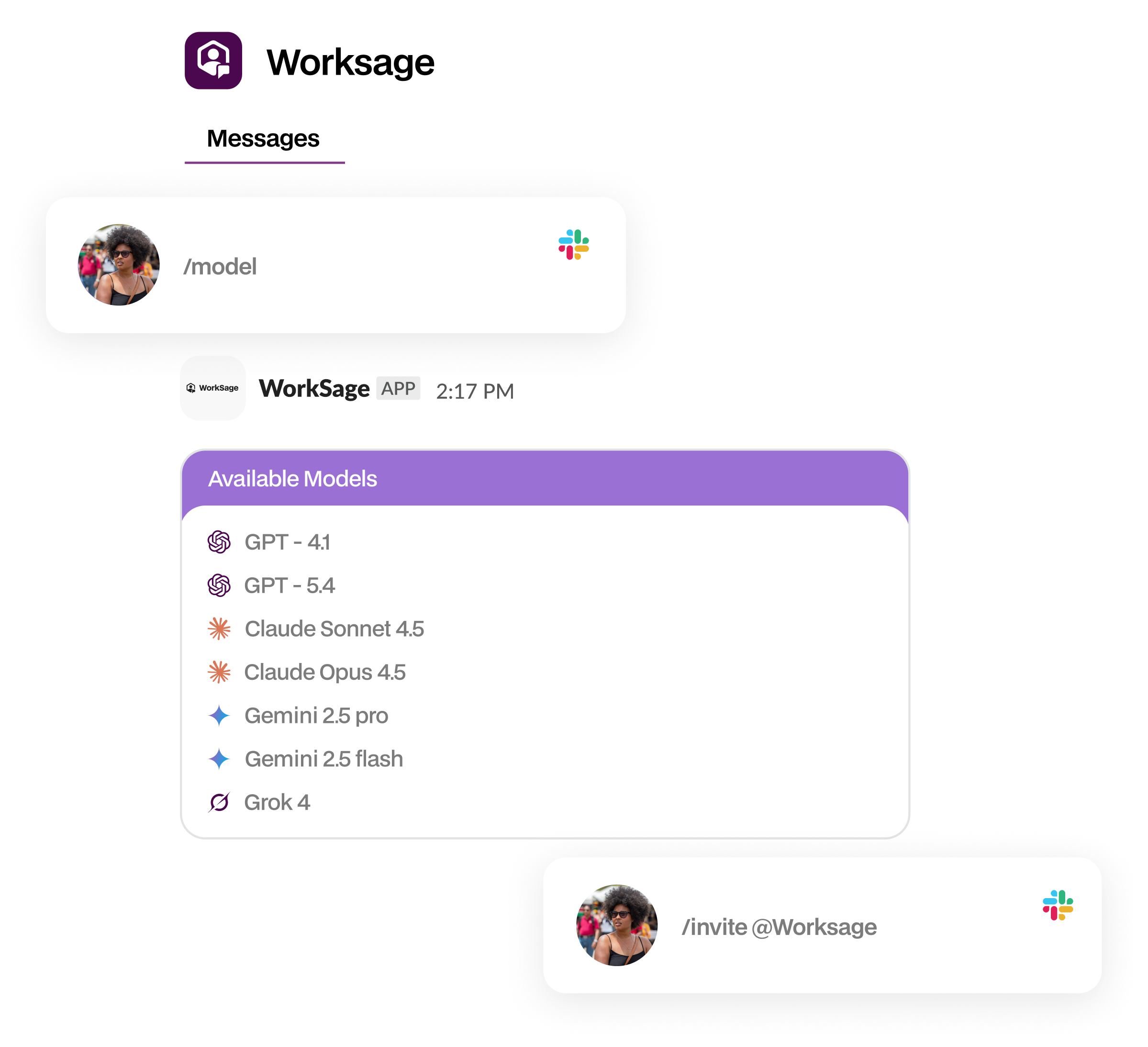
How to use Sage in Slack
Direct message Sage. Open a DM with the Sage app and ask anything.
Add to Slack* Sage uses large language models. Responses can occasionally be inaccurate. Review before acting on anything consequential.
Setting up Sage in Slack
Step 1
Sign up for WorkSage if you don't have an account.
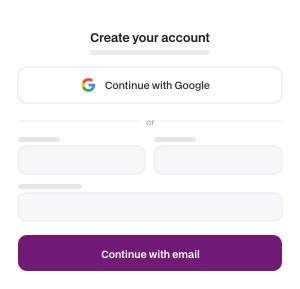
Step 2
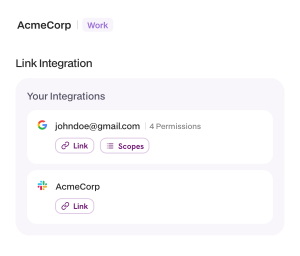
Click Add to Slack to authorise the app and link it to WorkSage.
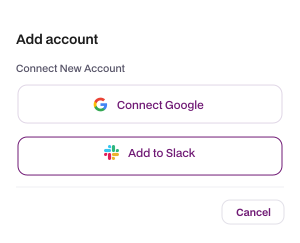
Step 3
Choose which WorkSage Space the Slack workspace belongs to. Each Space is isolated, so your day-job Slack and your side-project Slack stay separate.
Step 4
Start using Sage. DM Sage on Slack for anything you need, and use /invite @WorkSage in any channel where you want Sage to capture commitments.
*Sage can only read or join public or private channels you explicitly add Sage to. Sage cannot access your DMs on Slack.
Frequently Asked Questions
Everything you need to know about using Sage in Slack