Integrations · 6 min read
AI in Slack: Why Your Assistant Needs Context Beyond Slack

Worksage
Oct 8, 2026
TL;DR
- An AI assistant in Slack is only as useful as the context it can reach. If it only reads Slack, it can only answer Slack questions.
- Most of the answers you need at work live elsewhere: your calendar, your inbox, your meetings and your documents.
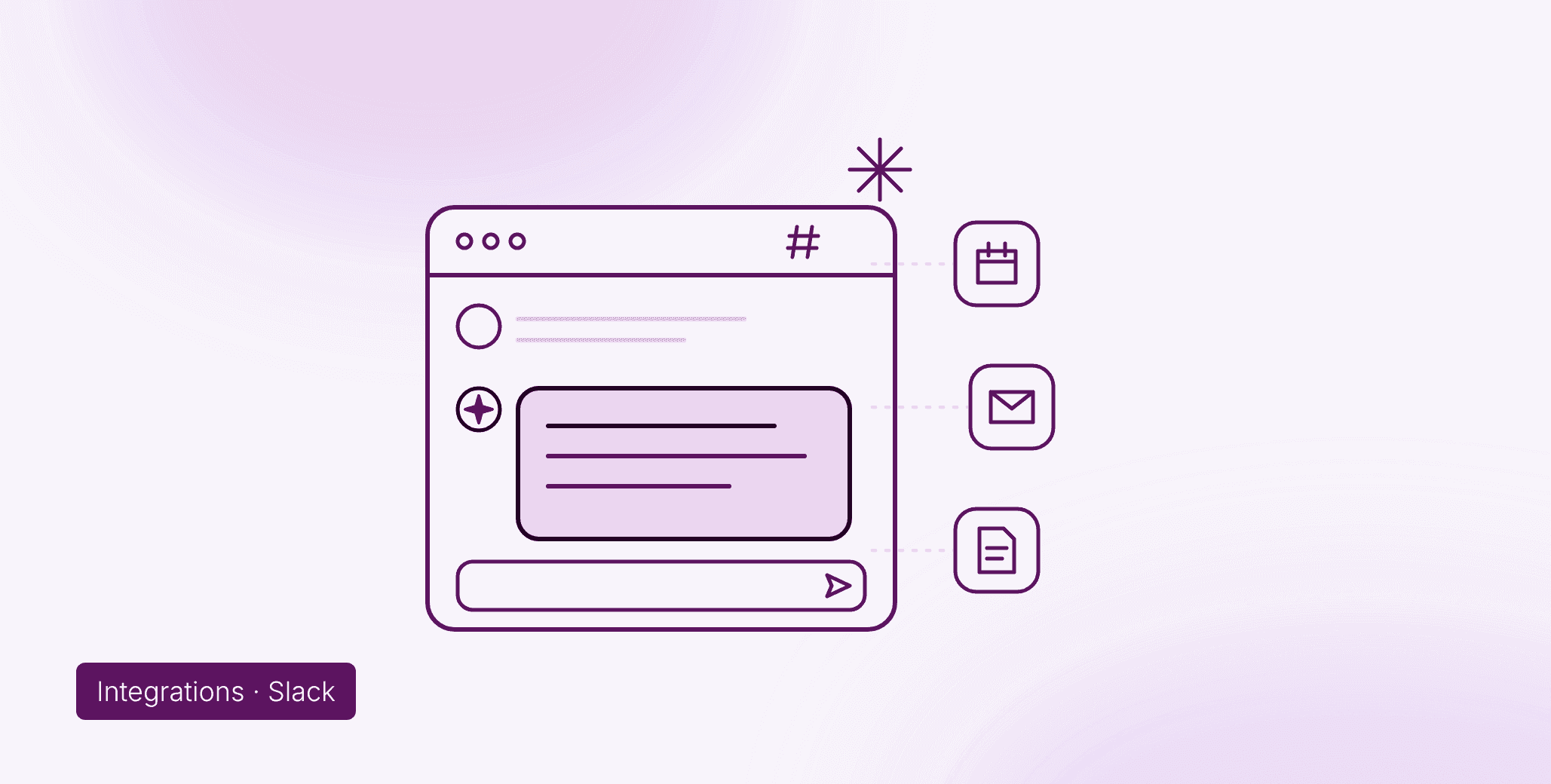
- Sage, the WorkSage assistant, brings that wider context into Slack. You DM Sage, ask a question, and it reasons across everything you've connected.
- Invite Sage to a channel and it tracks decisions and commitments, so you can ask later who owns what.
- Each WorkSage Space is isolated, so your day-job Slack and your side-project Slack stay separate.
By the WorkSage team · Published 8 October 2026
What is an AI assistant in Slack?
An AI assistant in Slack is a bot you message inside Slack to answer questions, catch up on what you missed and draft replies without leaving the app. Slack is where much of the working day already happens, so putting the help there removes a context switch.
Where these assistants differ is in what they can see. Some only read the channels they've been added to. Others reach beyond Slack into the rest of your work. That difference decides whether the assistant is a summariser or something you actually rely on.
Why isn't Slack history enough for an AI assistant?
Slack history isn't enough because most of the facts behind a Slack conversation never happen in Slack. The pricing change was agreed on a call. The deadline lives in your calendar. The final numbers sit in a document, and the customer's answer is in your inbox.
An assistant that only reads Slack can tell you that people discussed the pricing change. It can't tell you what was decided, because the decision was made somewhere it can't see. You end up doing the real work yourself: opening the calendar, searching email, digging up the doc.
What should an AI assistant in Slack be able to do?
A useful AI assistant in Slack should answer questions about your whole work life, not just your messages. In practice that means four jobs:
Get you caught up
Ask what happened while you were away and get an answer drawn from your meetings, email, calendar and connected tools, not only from unread Slack threads.
Draft messages with the right facts
A reply, a follow-up or a status update should use your past conversations, documents and calendar, so it's written in your voice and gets the details right.
Answer questions from your wider work life
"What time is my call with Jordan tomorrow?" "What did we agree on the pricing change?" These are Slack-shaped questions with answers that live outside Slack.
Capture commitments from channels
Decisions and promises get made in channels and then scroll away. An assistant in the channel can track them, so you can later ask what you agreed to, who owns what and what's still outstanding.
How does Sage bring work context into Slack?
Sage brings work context into Slack by drawing on WorkSage's Knowledge Layer: one persistent memory built from your calendar, email, tasks, documents and meetings. Slack becomes another place you can reach that memory, not the only thing the assistant knows.
That's the difference in one line: the assistant sits in Slack, but its knowledge doesn't stop there.
You use Sage in two ways:
- Direct message Sage. Open a DM with the Sage app and ask anything: catch-ups, drafts, schedule questions, "what did we decide" questions.
- Invite Sage to a channel. Use
/invite @WorkSagein any channel where you want decisions and commitments captured.
How do you keep work and side projects separate?
You keep them separate with WorkSage Spaces. When you connect a Slack workspace, you choose which Space it belongs to, and each Space is isolated. Your day-job Slack and your side-project Slack never share context, so Sage won't mix up two sets of clients, deadlines or decisions.
How do you set up Sage in Slack?
Setting up Sage in Slack takes four steps:
- Sign up for WorkSage if you don't have an account.
- Click Add to Slack to authorise the app and link it to WorkSage.
- Choose a Space for this Slack workspace.
- Start using Sage. DM Sage for anything you need, and
/invite @WorkSageinto channels where you want commitments captured.
Full walkthrough: Sage for Slack.
Frequently asked questions
Does Sage only read Slack messages?
No. Sage reasons across everything you connect to WorkSage, including your calendar, email, meetings and documents. Slack is one source and one place to ask, not the limit of what Sage knows.
Can Sage see every channel in my workspace?
Sage captures decisions and commitments in the channels you invite it to with /invite @WorkSage. For everything else, you talk to Sage privately in a DM.
Can I use Sage with more than one Slack workspace?
Yes. Each Slack workspace is linked to a WorkSage Space, and Spaces are isolated from each other, so context from one workspace doesn't leak into another.
What can I ask Sage in Slack?
Anything about your work: what you missed while you were away, when your next call is, what was agreed in a meeting, or a draft reply that uses the right facts. Sage answers from your connected tools, not only from Slack.
How is this different from a Slack summary bot?
A summary bot condenses what was said in Slack. Sage answers from your wider work life, so it can tell you what was decided on a call or what's in the doc, not just that people talked about it.
Bring your context into Slack
Sage puts your calendar, email, meetings and documents one DM away, inside the app you already use all day.
Related: WorkSage pricing · WorkSage for enterprise