Spaces
A Space is an isolated work context inside WorkSage. Each of your jobs, businesses, clients, or major projects is its own Space, with its own connected accounts, its own data, and its own Sage view. Sage can reason across all your Spaces at a meta level, but no data ever crosses between them.
Quick References
| Free | Pro | Pro + | Teams | |
|---|---|---|---|---|
| Spaces per plan | 1 | 3 | 3 | 1 per seat |
| Extra Space cost | 1 | $10/mo | $5/mo | $5/mo |

One assistant, reasoning across every Space
Day job
Space
- Connected accounts
- Calendar
- Files
- Meetings
Side business
Space
- Connected accounts
- Calendar
- Files
- Meetings
Personal
Space
- Connected accounts
- Calendar
- Files
- Meetings
Sage reasons across your Spaces. Your data does not.
Why Spaces exist
Most professionals today work across more than one context: A full-time job and a side business. A consulting firm and a personal startup. Three freelance clients. A day job and a board role.
The problem with using general AI tools across multiple contexts is that they either mix everything together, or force you to maintain entirely separate accounts, which means no cohesion across your life.
Spaces solve both. Each Space is a sealed container of work data. The accounts you connect to one Space are not visible from another. The documents, emails, meetings, and tasks that belong to one Space stay there.
What's inside a Space
Every Space contains:
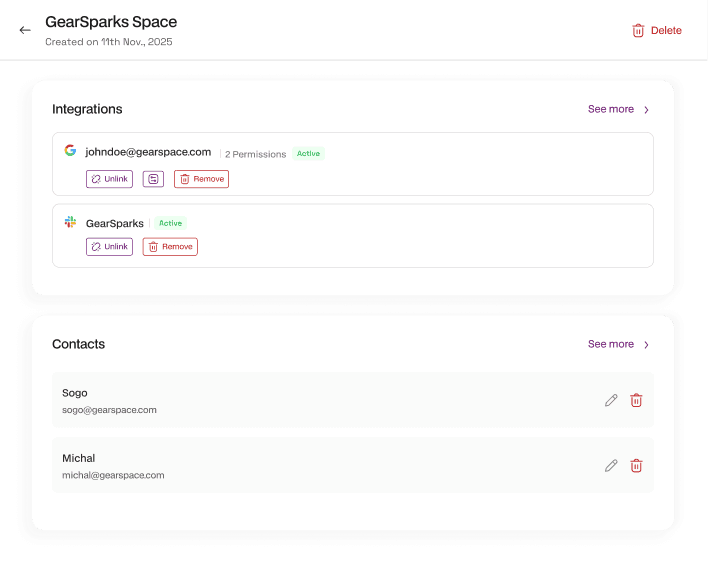
Connected accounts.
Each Space has its own connections to Google Workspace or Microsoft 365, Slack, and any other integration you add. A single Space might have your work Google account and your work Slack workspace. A second Space might have your personal Google account. Integrations are configured per Space, not per account, so a managed work account stays inside its own Space, with its own permissions, and is never exposed to data from your other contexts.
Dashboard and calendar
Each Space has its own dashboard and calendar showing your commitments, your schedule, and how busy your week looks. You can toggle between viewing a single Space at a time, or all your Spaces at once for a full-life view.
Each Space has its own inbox, drawing from that Space's connected email account. Messages are surfaced in order of importance, not recency, so what matters appears first.
Documents and files
Each Space has its own WorkSage-hosted document store. You can add files by uploading them directly, or by importing from a connected integration like Drive or OneDrive. Documents you create through Sage live in WorkSage by default. If you want a Sage-created doc to appear in your Drive or OneDrive, sync it explicitly.
Meeting intelligence
Meetings are captured into whichever Space is active when you join them. Each Space holds its own meeting transcripts, decisions, and commitments. If a meeting belongs to a specific Space, switch into that Space before joining so the context lands in the right place.
Sage memory
Sage builds a separate context store for each Space. The deeper your context in a Space grows, the more Sage understands the patterns, people, and priorities of that particular slice of your work.
Common Space configurations
You don't need to over-think how to organise your Spaces. Most users land in one of these patterns.
Who it's for
For anyone with a single work context. A founder running one company, an employee with no side work, or a freelancer with a single client. Everything you connect lives in one place.
Pro and Pro Plus include three Spaces. If you need more, additional Spaces can be added for a small monthly fee.
Most users land on two or three Spaces. Start with one and add more as your work expands.
How Sage works across Spaces
Sage can reason across all your Spaces simultaneously, but only when you ask it to, and only in ways that respect Space isolation.
Inside a Space
When you are working in a Space, Sage answers questions using that Space's data. If you ask Sage "what is on my schedule today?" while in your day-job Space, Sage shows only your day-job calendar.
Cross-Space meta questions
When you ask Sage a question that requires looking across Spaces, Sage handles it at the meta level. "Am I free Tuesday at 3pm?" returns a yes or no based on every Space's calendar, but Sage will not tell your freelance client what the conflicting day-job meeting is about. Cross-Space answers operate on availability and pattern, not on content.
Switching Spaces
You can switch between Spaces at any time from the WorkSage interface. When you switch, your view changes to that Space's data. Sage's responses change with you.
Sage answers cross-Space meta questions, availability, patterns, but never reveals content from one Space in another.
Spaces in Teams
On the Teams plan, Spaces work the same way they do for individuals, with a few additions designed for teams operating across shared work.
Shared or personal
Each Space on Teams can be set as personal, where only the owner sees it, or shared, where multiple team members can access it. The workspace owner decides which Spaces are which.
WorkSage native calendar per Space.
Each Space has its own WorkSage-owned calendar, independent of any individual team member's personal calendar. The WorkSage meeting bot attends all meetings on that calendar automatically, including unattended ones.
Team-level integrations
Teams Spaces include team-level CRM, Salesforce, HubSpot, and Microsoft Dynamics with read and write access. Confluence at the team level is ingested as shared context across the Space.
Round-robin booking.
Inbound booking requests can be distributed across available team members in the Space. WorkSage checks the intelligence layer for existing relationships before assigning, so the right person gets the right meeting.
Admin dashboard.
Workspace owners have a centralised view of team usage, Space activity, integration status, and billing across all team Spaces.
Sage answers cross-Space meta questions, availability, patterns, but never reveals content from one Space in another.
Teams Spaces can be shared or personal, and include a WorkSage native calendar plus team-level integrations.
Creating, switching, and deleting Spaces
Creating a space. From the spaces menu in WorkSage, choose Add sage. Give it a name, connect at least one account, and start using it.
Switch spaces. Use the space switcher in the WorkSage interface. Your active space is shown at the top of the navigation.
Renaming a space. Open the Space's settings and edit the name. Connected accounts, data, and history all carry over.
Disconnecting an integration. Open the Space's settings and disconnect the integration. WorkSage asks whether you want to retain or delete the context Sage has already learned from that integration. The integration's data itself is removed either way. Other Spaces are not affected.
Deleting a Space. From the Space's settings, choose Delete Space. Deletion is permanent after 30 days, during which the data can still be exported. After 30 days, all data in that Space is removed.
Disconnecting an integration lets you choose whether to retain or delete what Sage has already learned from it.
Spaces and your plan
How many Spaces you can have depends on your plan:
- Free - 1 Space
- Pro - 3 Spaces included, additional Spaces at $10/month each
- Pro Plus - 3 Spaces included, additional Spaces at $5/month each
- Teams - 3 spaces included, additional spaces at $5/month each. Spaces can be set to personal or team
- Enterprise - Custom
Spaces and usage allocation are separate. Adding a Space does not increase your monthly Sage usage. If you need more usage, buy extra usage or upgrade from Pro to Pro Plus.
Spaces and your data
Each Space is logically isolated at the storage layer. No data is shared between Spaces without an explicit cross-Space query, and even then only at the meta level: availability, patterns, scheduling, not at the content level.
WorkSage does not train AI models on your data, in any Space, on any plan. On account cancellation, all data from all Spaces is exportable for 30 days, then permanently deleted. For more, see the Security page.
Frequently Asked Questions
Can I move data between Spaces?
No. Spaces are isolated by design. If a piece of data belongs in a different Space, you need to connect the source account to that Space directly.
What happens to a meeting if I switch Spaces mid-meeting?
Meeting context is attached to the Space that is active when WorkSage joins. Switch before the meeting when you want it stored somewhere else.
Can two people share a Space?
On individual plans, no. Spaces are personal. On the Teams plan, Spaces can be personal or shared at the workspace owner's discretion.
Does deleting a Space delete the data in the underlying accounts?
No. Deleting a Space removes the Space's context store from WorkSage and disconnects the integrations. The underlying Google, Microsoft, or Slack accounts are not touched.
Can Sage tell me what's in another Space?
Only at the meta level. Sage can tell you that you have a conflict on Tuesday at 3pm without revealing what the conflicting event is about. Sage cannot answer "what is the budget I quoted client X" from a different Space than the one client X belongs to.
Is there a maximum number of Spaces?
No. Pro, Pro Plus, and Teams users can add as many Spaces as they need for the per-Space fee.